LabHQ LIMS Q3 2026 Update: Introducing Barcode Scanning, Certificate Management and Client File Sharing
Our Q3 2026 update went live on 29 September 2026. It brings faster sample handling with barcode scanning, one place to manage every certificate, and more control over the files your clients can see.
Since our Q2 2026 update, LabHQ has used continuous delivery by default. Some of these features have been live since they were ready. If you're on quarterly releases, they're all available to you now. Here's what's new.
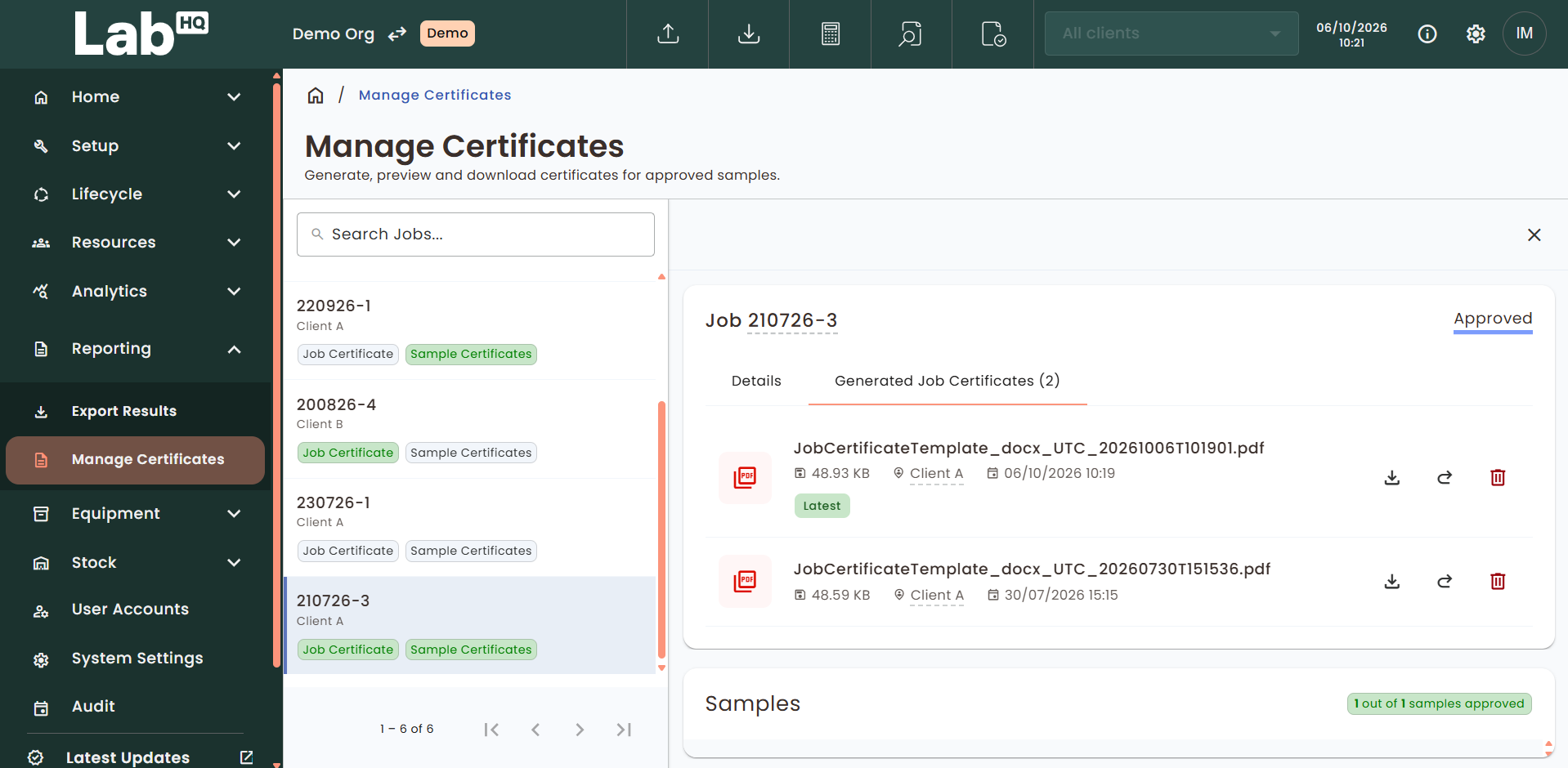
Manage Every Certificate in One Place
Certificates are often the last step before results reach a client. The new Manage Certificates area brings generating, previewing, downloading and tracking certificates into one workflow, at job or sample level, for one client or several.
- Generate at the right level: one certificate per job, or individual certificates per sample.
- Control the content: choose which test outputs appear, per client, per certificate.
- Issue to multiple clients: each certificate is permanently linked to the client it was issued to.
- Keep every version: regenerate any time, with every past version retained and a full audit trail.
Find it under Reporting > Manage Certificates, or directly from Job Details, Sample Details and Approve Samples. Learn more about Analysis & Reporting.
Scan a Label, Open the Sample
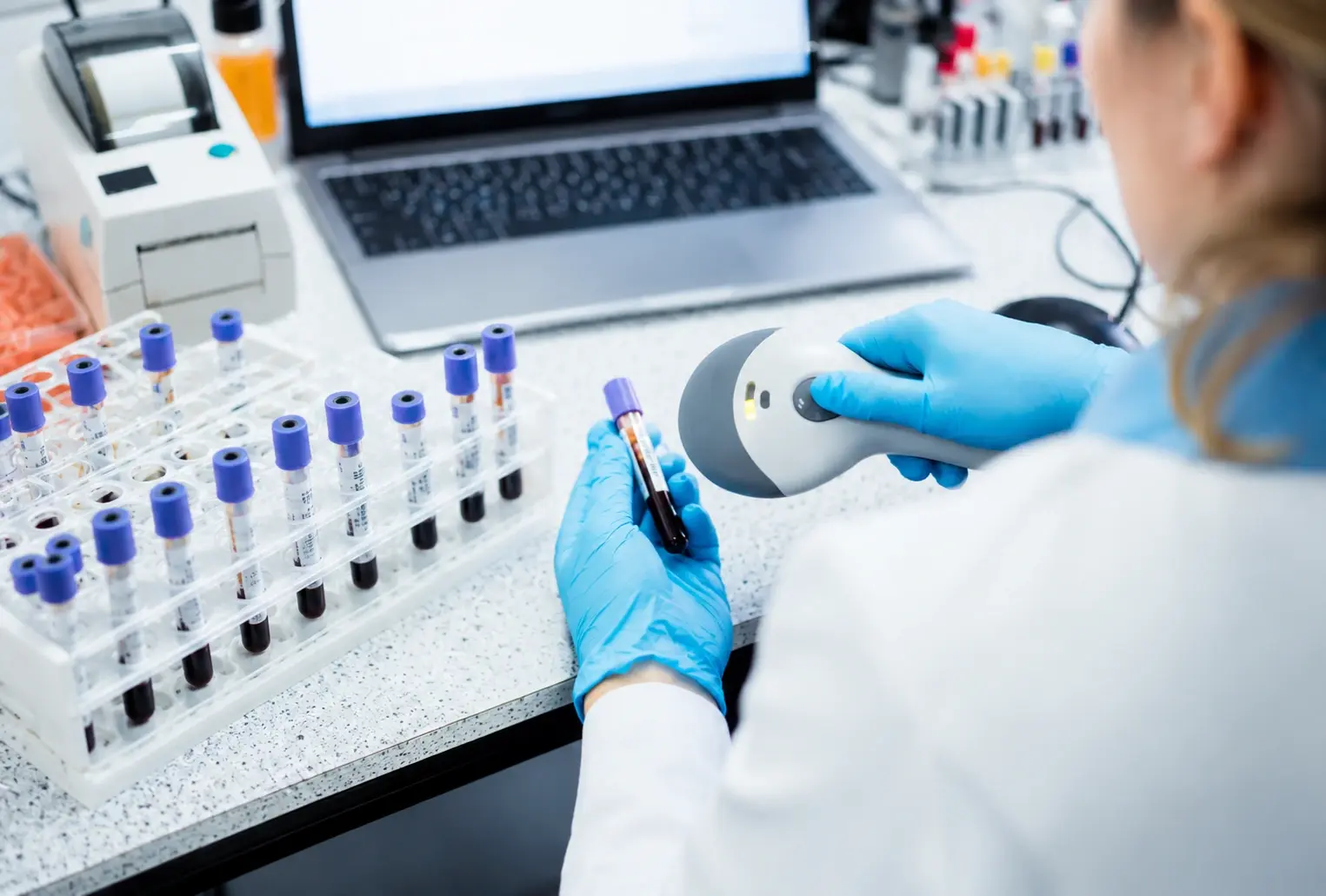
Typing Sample IDs by hand is slow and easy to get wrong. Now you can scan a sample label to open its record and go straight to its next workflow step.
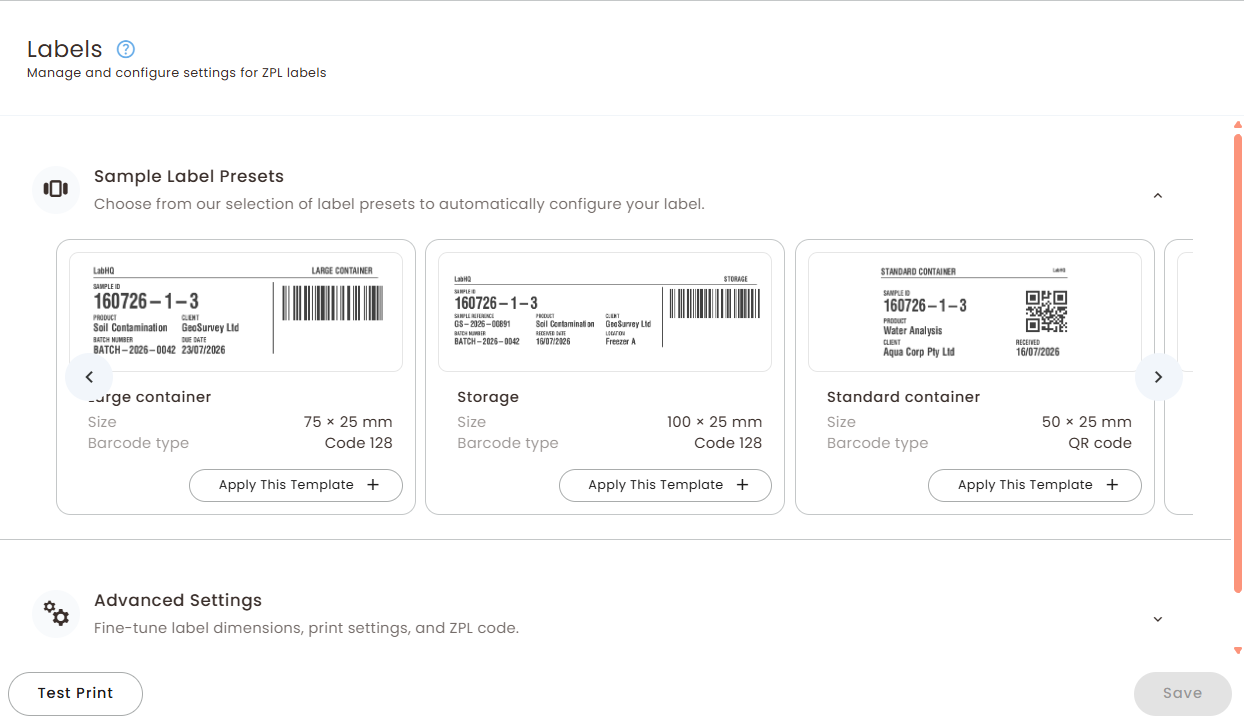
- Works with 1D barcodes and QR codes.
- Supports connected barcode scanners, so there's no need to type Sample IDs.
- Administrators can choose predefined label layouts for Code 128, Code 39, Data Matrix and QR codes.
See more on Sample & Data Management.
Share Files with Clients Through the Portal
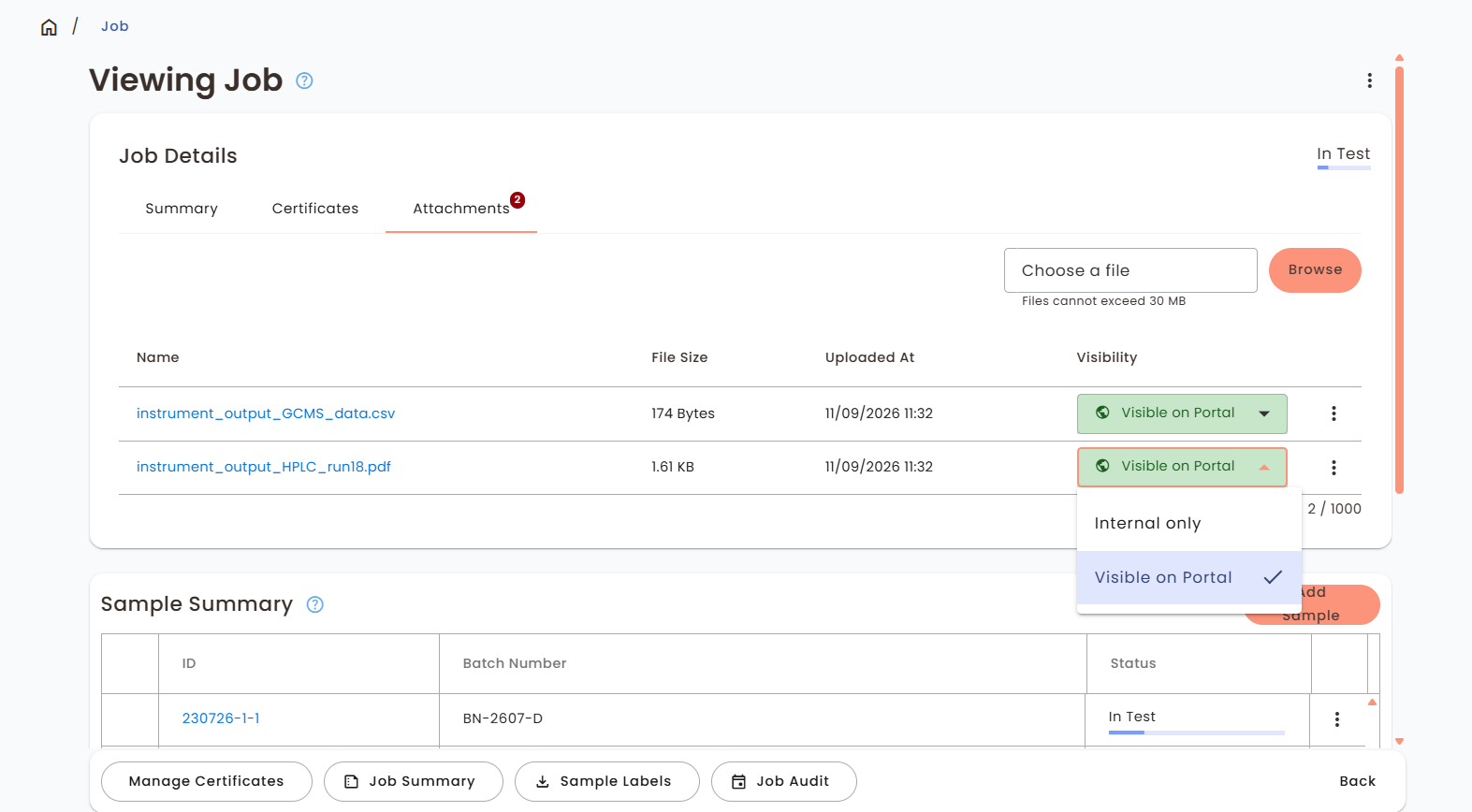
Emailing files to clients one by one takes time. You now control whether clients can see and download the files attached to their jobs and samples.
- Set visibility per file: internal only, or shared with clients via the Portal.
- Let clients help themselves: clients download shared files directly, cutting down manual file sharing.
- Nothing else changes: uploading and managing attachments works as before.
Find it under the Attachments tab on Job and Sample views.
Let Clients Know When New Files Arrive
Sharing a file only helps if the client knows it's there. Portal users are now emailed when a new file is shared with them.
- Emails go to portal users who have opted in to notifications.
- Each email identifies the related job or sample and the attachment.
- Internal-only attachments never trigger a notification.
Explore the External User Portal.
Trace Every Stock Record
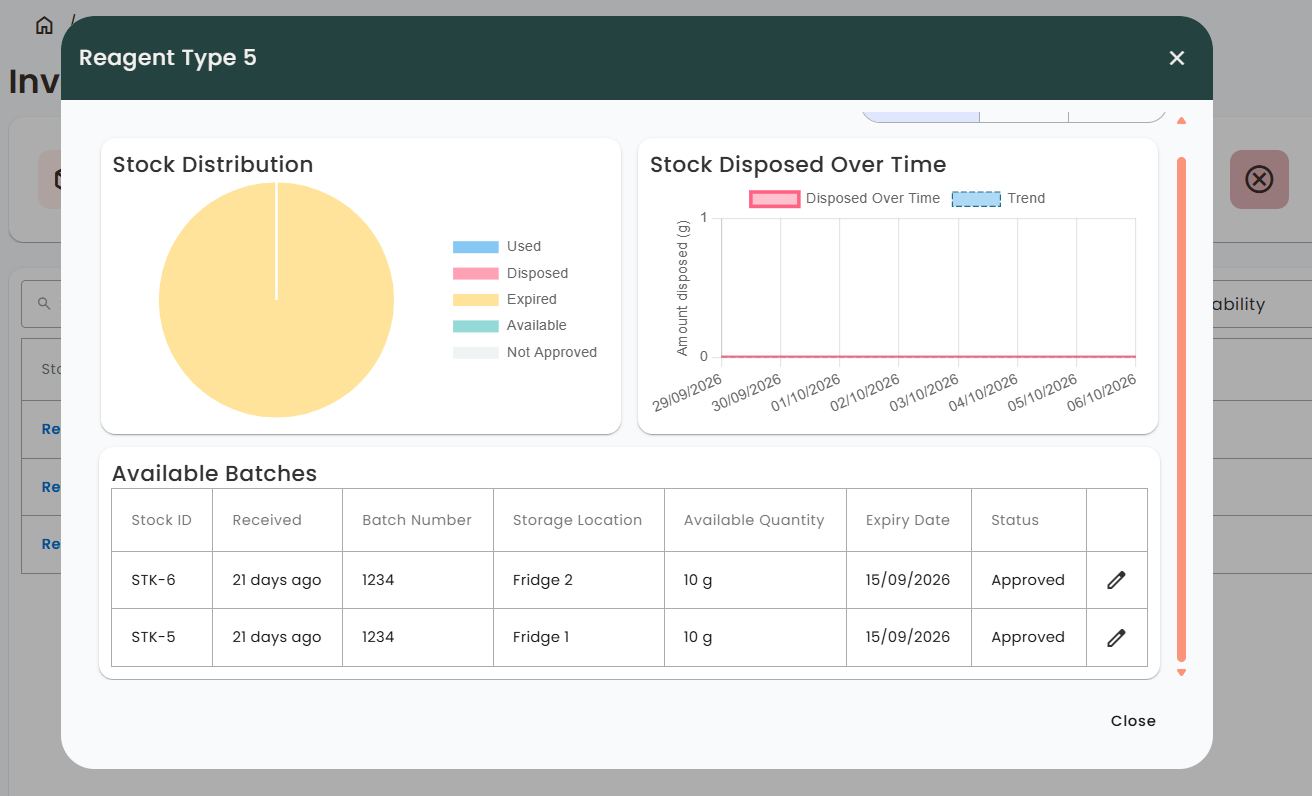
Two stock records can share a batch number, which makes it easy to use the wrong one. Every stock record now gets a unique, auto-assigned Stock ID (STK-1, STK-2 and so on) as soon as it's received.
- No setup required: LabHQ generates IDs automatically on receipt.
- Use the right stock: tell apart records that share a batch number.
- Full traceability: follow each record from receipt through usage to disposal.
Know Where Your Stock Is Stored
You can now record where each stock batch is physically stored, down to the room, shelf or cabinet.
- It's an optional field when receiving stock, using your existing Locations list.
- Locations are set per stock ID/ record, so items with several batches can be tracked across different locations.
- Update a location any time stock moves, with changes recorded in the audit log.
Find it under Stock > Receive Stock or Stock > Inventory. Read more about Stock Management.
Get New Team Members Up to Speed Faster
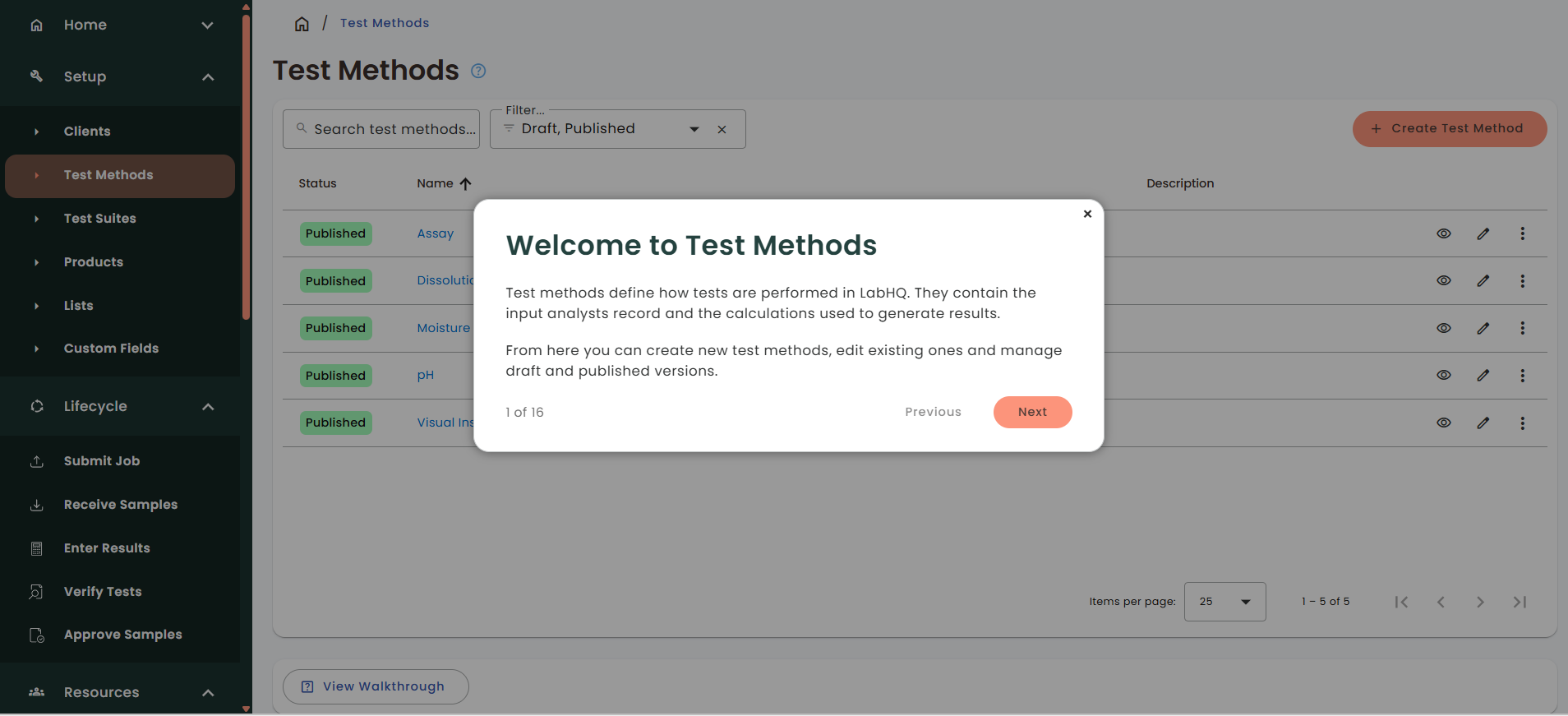
Setting up your configuration is one of the first jobs in LabHQ. New guided tutorials give step-by-step guidance inside LabHQ for setting up test methods, test suites and products. They help new team members get up to speed faster.
Simpler, More Logical Settings
Application settings are now grouped more logically, so it's quicker to find what you need.
- Administration is now called System Settings.
- User Accounts has its own main menu entry.
Also in This Update
- Clearer status pages during maintenance or if the service encounters an error.
- Easier roadmap access: reach the public product roadmap from the About window and the support site.
- Defect fixes: eight issues resolved.
See the full Q3 change summary.
Choose How You Receive New Features
LabHQ uses continuous delivery by default, so new features are available as soon as they're fully developed and tested. If your lab works under strict change control, the quarterly release option remains fully supported. New functionality stays disabled until the next quarterly release, giving your team a fixed window to review and validate changes. Read more in Product Releases & Access to New Features.
Have a Feature in Mind?
We build LabHQ around the needs of the scientists and lab managers who use it every day. If you've got an idea that would make your workflow smoother, we want to hear it. Email us at support@thelabhq.com or submit it through our support site.
See the Q3 Update in Action
Ready to see barcode scanning, certificate management and client file sharing with your own lab data? Book a demo with our team today, or start LabHQ free to explore the Q3 update first-hand.